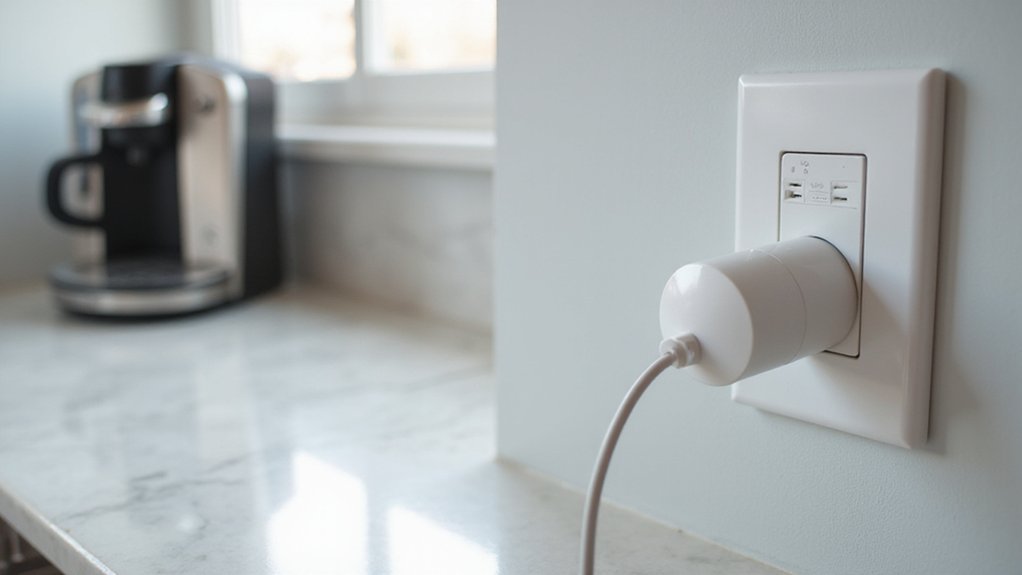
Having trouble with your Amazon Smart Plug not responding or working properly? Resetting it is often the solution to fix issues like unresponsive commands or Wi-Fi problems.
You can do this quickly by pressing a button on the device or remotely through the Alexa app.
In this guide, you’ll learn exactly how to reset your smart plug, whether manual or remote, so you can get it working smoothly again.
Common Alexa Plug Glitches That a Reset Fixes
If your Amazon Smart Plug suddenly stops working, performing a reset can often fix common issues. Power interruptions are a frequent cause—unplug the device for 30 to 60 seconds to clear temporary glitches. Loss of Wi‑Fi connection can also mimic device failure; restarting your router or repositioning the plug closer to your Wi‑Fi source may restore connectivity. Voice command problems are often linked to outdated Alexa app software or unsynchronized skills; disabling and re-enabling the affected skill can resolve these. For example, a reset ensures the plug is set to the correct direction for seasonal operation, clearing any fan rotation errors. Conflicting Alexa routines may also prevent manual toggles or scheduled operations; reviewing and disabling interfering automations can help. Performing a cold boot by unplugging the device for about 1 minute before reconnecting ensures a full power cycle and can clear persistent glitches. Ensuring the plug is installed in a location protected from moisture is similarly crucial, as exposure to water can mimic electrical faults, similar to the waterproof rating used in recessed lighting installations. For wired installations, always double-check that you have turned off the power at the circuit breaker, as this is a critical safety precaution from basic electrical work. Usually, a reset clears these problems without further troubleshooting.
Factory Reset via the Side Button (12 Seconds)
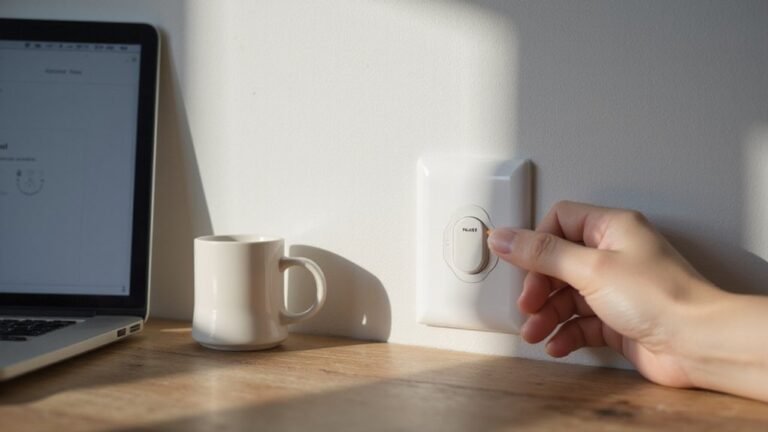
To factory reset your Amazon Smart Plug via the side button, ensure the device remains plugged into a working outlet throughout the process. A steady power source is essential for the reset to complete successfully. Locate the side button on the device and press and hold it for approximately 12 seconds. It’s important not to release the button early; watch the LED indicator closely during this time. The reset is in progress when the LED changes to red and blue or starts flashing blue, depending on your model. Once you see this visual cue, release the button. The LED will then flash the reset pattern, indicating that the device has returned to factory settings and is deregistered from your Amazon account. This process is much simpler than replacing a fan switch when troubleshooting device issues. After the reset completes, you can safely unplug the device. This process clears previous settings and restores the plug to factory default configurations. Re-setup through the Alexa app is necessary before using the plug normally again. Note that smart plugs generally consume very little power, far less than the typical household electricity usage of the bulbs they control. Wire connectors are used to securely join electrical wires, but this smart plug reset requires no such hardware.
Reset Through the Alexa App – No Button Needed
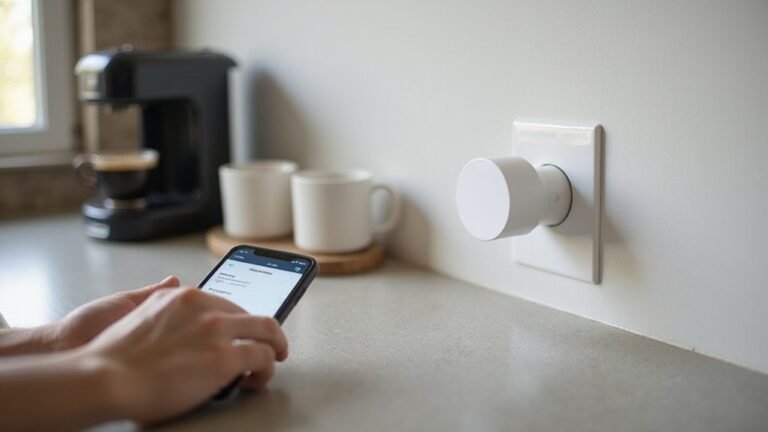
Resetting via the Alexa app is a straightforward way to reset your plug without pressing the side button. First, remove the device from your account by opening the Alexa app, going to Devices, then Plugs, and selecting your specific device. Tap the settings icon and choose to delete or remove the device. Make sure the plug is powered on and connected to the internet before doing this, as the app needs to send the remote reset command. While this process uses a wireless signal, ensuring a clean, stable connection prevents interruptions, similar to how guide wire lighting requires secure wiring for a flawless finish. For consistent performance, you should always use a 12-gauge wire for longer cable runs to prevent voltage drop. This avoids the voltage drop that can occur with thinner wiring in longer setups, ensuring reliable power delivery.
Once you confirm the deletion, you’ll receive an app notification that indicates the reset is in progress. The plug will automatically wipe all settings and return to its factory default state, making it ready for a new setup. You don’t need to use a voice command during this process—everything is handled through the app interface. This remote reset method effectively sends the device into a state where its LED flashes red and blue to confirm readiness for pairing.
To add the plug back, go to Devices in the app, tap the plus icon, and select Add Device then Plug. Follow the prompts provided by the app to detect and pair the device. This method provides a convenient alternative when pressing physical buttons is inconvenient or impossible.
What the Reset Indicator Lights Mean
When your Amazon Smart Plug flashes different colors, each pattern indicates a specific device status. A solid red light for about one minute followed by turning off signals that your plug isn’t registered with Alexa. This lighting pattern shows a registration status issue, meaning the device needs to be re-registered. Blinking red, however, points to a network problem or disconnection, indicating the plug isn’t connected properly but not a reset success. During setup, blinking blue (indicating readiness or an ongoing process) and blinking green (setup mode, which times out after approximately 15 minutes) help guide your progress. When you see a factory reset in progress, the alternating red and green lights show that the reset is underway. Once the lights alternate red and blue, it confirms the reset has completed successfully, and the plug is ready for re-pairing. Paying close attention to these lighting patterns ensures you know whether to register, reconnect, or finalize setup. For further assistance, consult the official troubleshooting guide for Amazon devices.
Why Your Reset Didn’t Work (Button, Power, and Hold Time)
Your Amazon Smart Plug isn’t resetting if you haven’t correctly timed the hold, confirmed your power source, or followed the right sequence. First, check the Button hold duration. You need to press and hold the side button for exactly 12 seconds. Releasing earlier, even at 10 seconds, usually won’t trigger the reset. Wait until the LED light changes color and starts flashing blue before releasing. Second, make sure your Power connection is stable. The plug needs a consistent power supply to complete the reset. If it’s loose or the outlet is dead, the device won’t respond. Unplug it, wait a few seconds, then plug it back in firmly. After that, hold the button for the full 12 seconds again. Remember, a quick restart does not count as a reset; you must follow this sequence precisely for factory reset success. When you do, the plug should enter pairing mode successfully. Note that using a different wire connector type for the plug’s internal wiring may affect power stability and reset behavior.
Reconnect Your Plug to Alexa After a Reset
After holding the button for 12 seconds and seeing the LED flash blue, your plug is ready to pair again. Open the Alexa app and go to the Devices area. Tap the plus icon and select “Add Device.” Choose “Plug” and follow the on-screen prompts. You can also say, “Alexa, find my devices,” to initiate detection. This process generally takes about a minute. If a barcode prompt appears, scan the plug’s barcode with your camera. Wait for Alexa to recognize and register the plug before completing the setup. Ensure you are using the same Amazon account as your original setup to confirm device compatibility. After reconnecting, check for firmware updates through the Alexa app to ensure optimal performance. If automatic detection doesn’t work, manually add the device by selecting “Add Device” and following the steps again. Once Alexa detects the plug, it is ready for routines and voice commands. To avoid repeat issues, ensure your Wi-Fi network is on a 2.4 GHz band for stable connections. For additional wiring assistance, review the safe wiring tips provided in the DIY guide. Resetting the plug completely can resolve persistent connectivity problems.
Fix Wi-Fi Setup After Reset: Use 2.4 GHz for Discovery
Because the Amazon Smart Plug only pairs over a 2.4 GHz network, you must connect your phone to that specific band before starting the setup in the Alexa app. Its Wi-Fi compatibility strictly excludes 5 GHz during pairing, so a mixed-band connection can prevent detection. First, check your router’s settings—most routers allow you to separate bands or temporarily disable the 5 GHz signal. Then, make sure your phone is connected to the same 2.4 GHz network you plan to use for the plug. Signal strength matters too: keep the plug within 100 feet of your router to avoid pairing dropouts. Open the Alexa app, tap Add Device, select Plug, and follow the prompts. If the plug doesn’t appear, verify that its LED indicates it is in pairing mode—blinking orange or blue means it’s ready. Avoid switching bands during setup, as a stable 2.4 GHz connection is essential for successful pairing. To simplify the reset process, you can also hold the pairing button on the plug for five seconds until it blinks, ensuring pairing mode readiness before the app detects it.
Reset, Power Cycle, or Re-Discover: Pick the Right Fix
Start by power cycling your plug: unplug it, wait ten seconds, and then plug it back in. This simple step often resolves frozen or unresponsive devices without altering any settings. If the problem persists, try re-discovery—remove the device from the Alexa app and scan for new devices. This process is effective if your plug is still configured correctly but isn’t showing up in voice commands or after a firmware update. Only perform a reset if the plug requires a complete wipe, which involves pressing and holding the side button for about 12 seconds until the light blinks red and blue. After resetting, you’ll need to set it up again in the app. Follow this order: power cycle first, then re-discover, and only reset if necessary. For best results, ensure the plug is within range of a strong Wi-Fi signal before attempting re-discovery. For a Gosund plug, try pressing and holding the side button for about 12 seconds until the light blinks red and blue. Always follow safe wiring tips when handling any plug to prevent electrical hazards during installation.