Having trouble with your Wemo Smart Plug not responding or working as it should? Resetting it can often fix common issues and get everything running smoothly again. A quick reset clears your device’s settings and restores it to factory defaults, making troubleshooting much easier.
In this guide, you’ll learn simple steps to reset your Wemo Smart Plug, whether you need a full reset or just want to resolve Wi-Fi connectivity problems.
Keep reading to get your plug working perfectly again.
When to Reset Your Wemo Smart Plug
You need to reset your Wemo Smart Plug when changing accounts, as the device is linked to the original setup account. A factory reset clears this connection, helping resolve device compatibility issues like failed account reassignments. It also addresses persistent errors that continue after rebooting by removing glitches and restoring the plug to a default state for fresh setup. If you update your home Wi‑Fi name or password, resetting the plug restores network settings and puts it into setup mode so you can reconnect without hassle. Safe wiring practices include verifying the power is off before handling any electrical connections. Moving the plug to a different room can also benefit from resetting, clearing old routines and configurations before reassigning it. Additionally, resetting helps address privacy concerns by removing previous configurations, ensuring your data stays secure when ownership changes. Following safe wiring tips during reinstallation helps prevent electrical hazards and ensures a clean DIY finish. The WSP80 and WSP100 models require different reset methods, so identifying your version is the first step. Mastering your LED strip remote first involves understanding brightness and color modes to match your plug’s lighting routine.
Physical Reset: Hold the Power Button Through Boot
To reset your Wemo Smart Plug physically during startup, follow these steps: unplug the device and wait five seconds to clear temporary glitches without erasing your settings. Then, press and hold the power button while plugging it back in. Keep holding the button throughout the boot process until the status light flashes rapidly white. This typically takes about five seconds. The rapid flash indicates the reset is accepted, erasing stored Wi-Fi credentials and restoring the plug to factory default settings. Afterward, you can set it up from scratch as if it were new. If the light does not flash rapidly, repeat the process, ensuring you hold the button throughout the entire startup. This method is effective even if you encounter app issues or recent firmware problems. This physical reset process is a factory reset that erases all saved settings for a fresh start. For a more permanent fixture approach, consider building a tripod floor lamp with a similar reset process for the socket. Unlike a ceiling fan, which requires changing the blade direction seasonally for energy efficiency, this plug reset is a one-time fix for connectivity issues. For similar tasks, always follow a step-by-step method to ensure safe and clean results.
App Reset: Clear Personal Info Without Touching the Plug
This app-based reset clears stored user customizations, including setup data and Wi-Fi credentials, but does not affect the device firmware. Your plug will revert to factory defaults, wiping your personal info clean without any hardware button presses. After the reset, you’ll need to set up the plug again by adding it in the app, which involves entering your home Wi-Fi name and password to regain remote control functionality. The process is similar to the satisfaction of completing a DIY build walkthrough, where a clean slate allows for a fresh and functional setup. This is unlike the specific beam angle of a BR30 bulb, which determines how light spreads from a fixture.
Wi-Fi Reset: Flash Your Wemo Mini White
To perform a Wi-Fi reset on your Wemo Mini, press and hold the power button while the plug is connected to power. Continue holding until the Status Light rapidly flashes white—that visible cue indicates your plug has entered setup mode. This white flash resets the network connection without deleting firmware updates or energy savings schedules. You will need to re-add the plug in the Wemo app to reconnect it to your home Wi-Fi network. Ensure your mobile device has the most recent app version before attempting to reconnect, as outdated software can cause setup failures. Be aware that when cutting LED strips, you must always cut along the designated cut lines to avoid damaging the circuit.
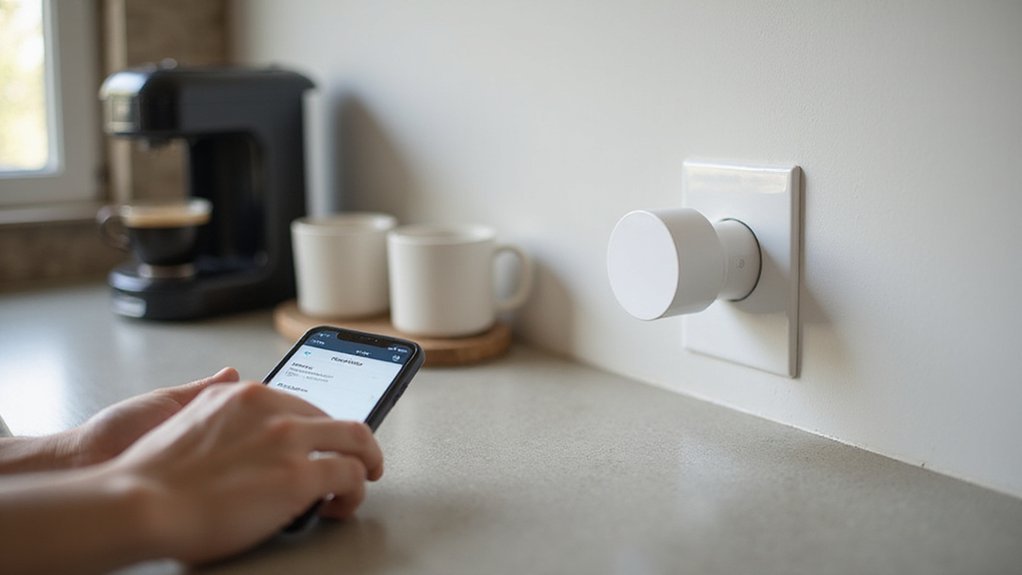
After the Status Light flashes white, open the Wemo app and tap “Add Device.” Your phone will then connect to the plug’s temporary Wi-Fi network. Follow the prompts to re-enter your home network name and password. Once successfully paired, the plug returns to normal operation, retains previous firmware updates, and can resume energy savings routines. However, for a more permanent installation, consider using recessed can lights to ensure a clean, flush mount that avoids loose connections. This process resolves Wi-Fi connectivity issues without erasing internal settings or schedules. Note that unlike AC ceiling fan motors, DC motors in modern appliances typically offer greater energy efficiency and quieter operation.
What Each Reset Erases (and What It Keeps)
A Clear Personalized Info reset removes your custom names, stored rules, and other personalized data. It keeps your Wi‑Fi SSID and password intact, allowing you to reconnect quickly without reconfiguring your entire setup. This reset is useful if you want to clear specific personal settings without losing your network credentials or needing to set up your device from scratch. It’s a partial reset that preserves essential connectivity details for convenience. However, a full hard reset, triggered by holding the reset button for 5–10 seconds, erases all custom settings and Wi‑Fi credentials, restoring the plug to factory defaults. This process is similar to converting recessed can lights to LED, where the light fixture’s housing remains while the internal bulb is replaced for better efficiency. For devices that use physical connections, understanding small wire connectors ensures a secure and reliable reconnection process.
Wemo Light Patterns: White Flash vs. Orange Blink
An alternating orange and white pattern indicates the Wemo plug is in setup mode after a reset. If you see a solid or blinking orange light alone, it points to a network issue: the device has stored Wi-Fi credentials but cannot establish a connection. During this state, app control is not available, though scheduled rules may still be active. A fast orange blink often signals overheating on certain models, which triggers an automatic shutdown for safety. Recognizing these patterns helps you quickly diagnose whether the device needs to be set up, updated, or connected to a better network. For comparison, when selecting other home fixtures, 4 inch recessed lighting offers better energy efficiency and beam control than larger options. Unlike these power indicators, DIY garden solar lights use light patterns to show battery charging status or dusk activation. For ceiling fans, proper placement rules ensure optimal airflow and clearance from walls and furniture.
After a Reset: How to Reconnect Your Plug to 2.4 GHz Wi-Fi
To reconnect your Wemo smart plug after a reset, ensure it is in pairing mode by pressing its button for 5–10 seconds until the LED blinks rapidly. The plug only supports 2.4 GHz Wi-Fi networks, so confirm your phone is connected to that band before opening the Wemo app. When you add the device in the app, it creates a temporary WEMO hotspot. Enter your 2.4 GHz Wi-Fi password when prompted. If pairing fails, look out for network interference from nearby electronics or a hidden SSID. Verify that your router’s channel is set to auto rather than static, and check for firmware updates through the app. If your router uses a combined SSID, disable band steering to ensure the plug connects to the 2.4 GHz band only. Moving the plug closer to the router can strengthen the signal, increasing the chances of successful reconnection. Adding beautiful crystal accents to your chandelier can enhance its visual appeal while maintaining a stable environment. Proper placement of the pendant height above your island can reduce physical obstructions that block Wi-Fi signals. Retry the pairing process after making these adjustments. For consistent performance, using a stable low voltage LED strip can help reduce electrical noise that might interfere with Wi-Fi signals.
Reboot vs. Reset: Which One Fixes Your Wemo Issue?
Rebooting your Wemo plug is the initial step when it becomes frozen or unresponsive, while a reset is necessary for addressing configuration issues like Wi‑Fi changes or rule problems. A reboot is a quick power cycle—unplug it for about five seconds and then plug it back in—that doesn’t erase your settings. It’s best suited for resolving temporary lockups after firmware updates or voice command glitches.
A reset, on the other hand, wipes all your customizations, including names, rules, and Wi‑Fi information. Use a reset when you’re switching networks, troubleshooting rule bugs, or after major router changes. To reset, hold the button until the light flashes rapidly white, indicating all settings have been cleared. One way to confirm the reset is complete is when the LED light flashes orange and white during the physical reset process.
Start with a reboot because it’s low-risk and easy to do. If your Wemo still isn’t responding properly or behaves erratically, then escalate to a reset. This approach helps distinguish between a simple hang-up and a deeper configuration problem.